Uploading Galleries
- Login as Photographer or Administrator. If you don’t have these permissions get them from current admins (see Getting Access to Admin Modules).
- Click on Upload on the Navigation Menu (see Navigation Menu).
- Drag and drop images or click on the “Select Images to Upload” button.
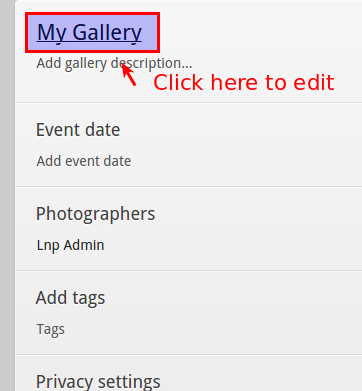
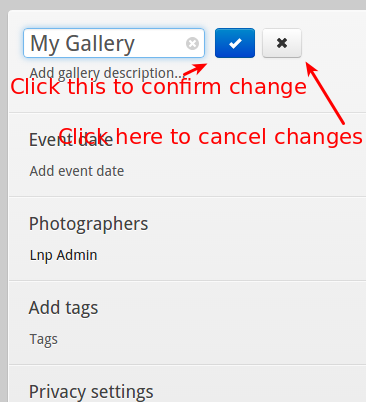
- Update the gallery information on the right side (see Updating Gallery Information).
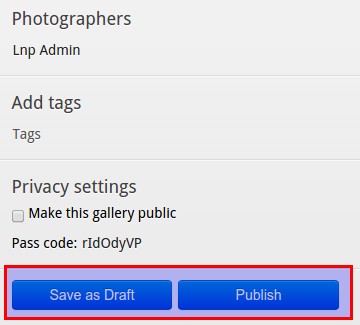
- The gallery, by default, has private permissions (see Private Galleries). To let everyone see it on the site, check “Make this gallery public” box.
- Once you are happy with the details, “Publish” or “Save as Draft” if you feel you missed something and want to publish it in a later time. For managing draft galleries, please see Draft Galleries.